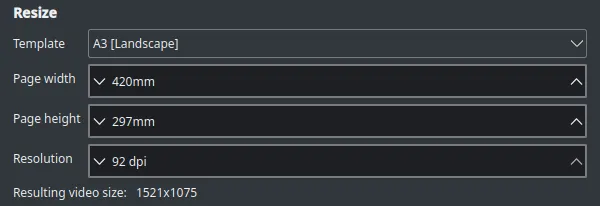
The calibration screen is the first step in utilizing Tacty. Here you can trim the video, crop it to extract the tactile graphic and resize it to speed up processing.
Time control
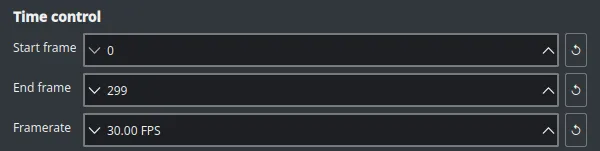
Section titled “Time control”The Start frame and End frame options allow you to trim the video. Frames outside of this range are ignored during tracking, but can still be used for background removal.
Framerate is used to properly generate the timestamps in the final export and for time-based options such as the limit on filling data.
Crop video
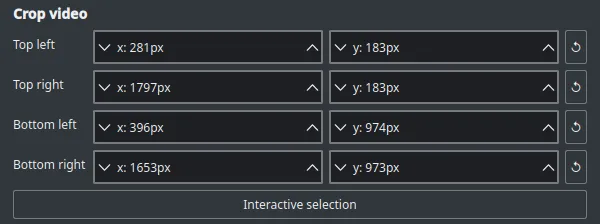
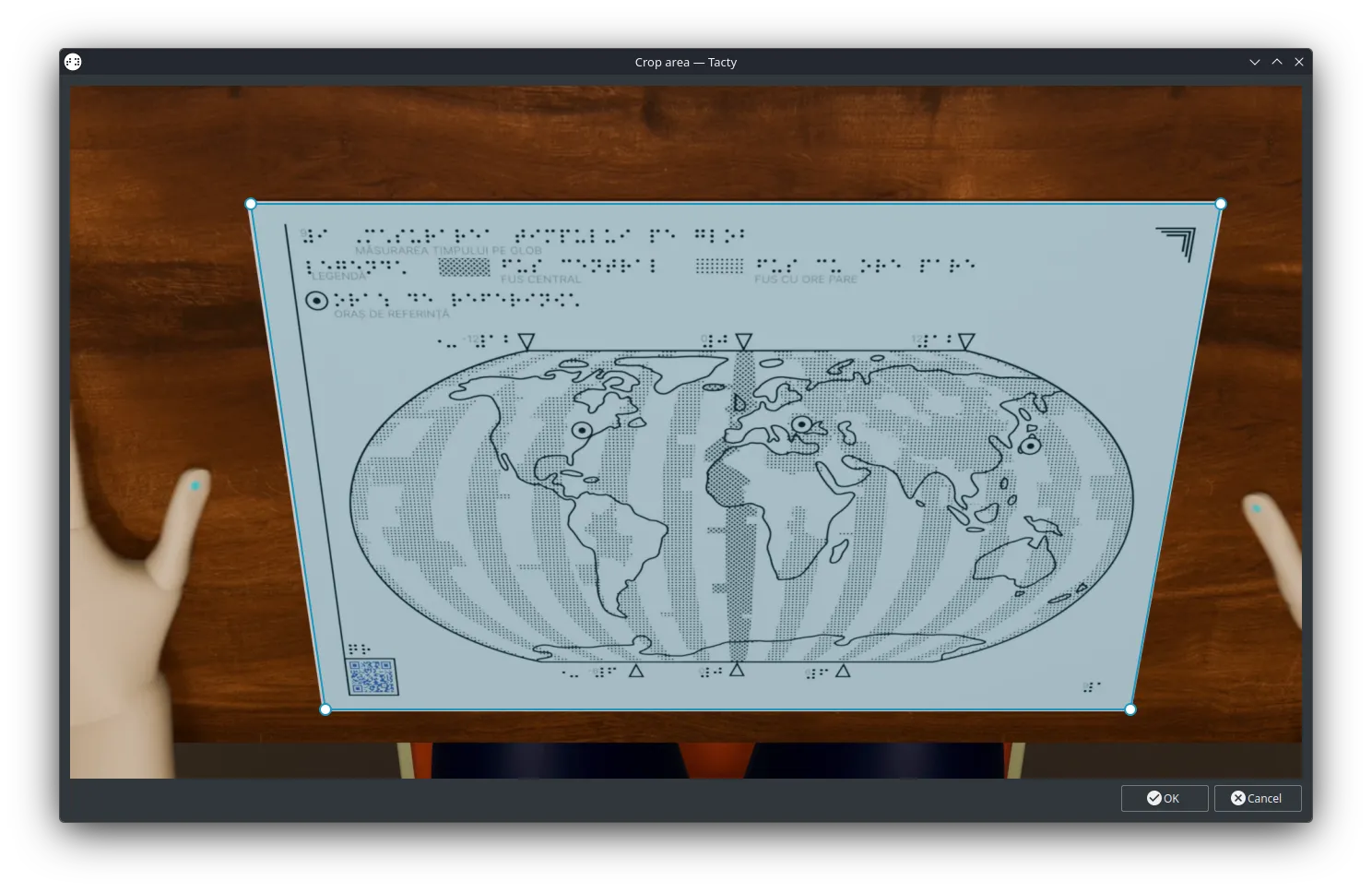
Section titled “Crop video”Cropping the video to contain only the tactile graphic is a very useful feature that accidental perspective introduced by the camera angle. This is done by selecting the coordinates of the page’s corners within your original video.
This can also be done interactively by dragging the four corners to match the paper:
Resize
Section titled “Resize”The dimensions of the page in millimeters form the coordinate system for storing tracking data and areas of interest. This makes comparing across multiple videos possible, even if they were shot at different resolutions. They can be set manually with Page width and Page height, or using the Template dropdown. Note that modifying the size of the page later will affect tracking data and areas of interest already defined.
Resolution can be tweaked to achieve a balance between processing speed and accuracy, without affecting stored data.